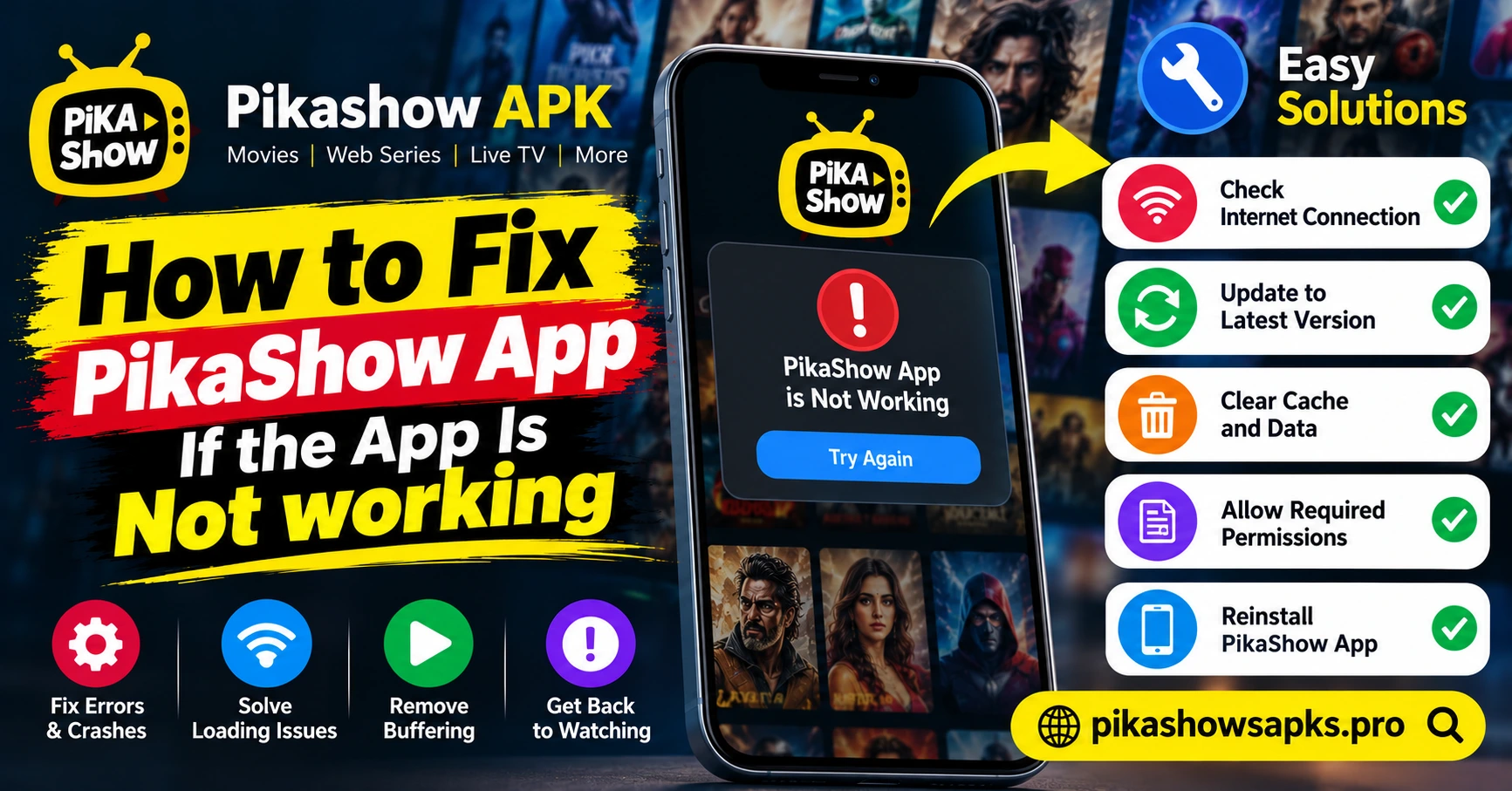
How to Fix PikaShow App If the App Is Not Working
When an entertainment application stops working, it can be frustrating. The app may fail to open, videos may not play, the screen may freeze, or streaming may stop unexpectedly. Users searching for ways to fix the PikaShow app usually want to understand what caused the problem and which troubleshooting steps they can try.
PikaShow is a name associated with a third-party Android entertainment application advertised for movies, TV shows, web series, and other video content. However, its availability, features, and reliability may vary depending on the version and distribution source.
An application that is not working may have a temporary software problem, an unstable internet connection, insufficient device resources, or an unavailable streaming source. In other cases, the problem may come from an outdated or incompatible application file.
This guide explains common PikaShow problems, practical troubleshooting methods, and important security precautions. The steps also apply to many other Android streaming applications.
Why Is the PikaShow App Not Working?
Before trying different solutions, it helps to understand the possible cause. An application may stop working because of a problem with the phone, the network, the application itself, or the service providing its content.
Poor Internet Connection
A weak or unstable internet connection can prevent an application from loading its content. The app may open normally but fail when you try to play a video.
Outdated or Incompatible Application
An older application may no longer work correctly with a newer Android version. Similarly, an APK designed for a different device environment may experience installation or playback problems.
Temporary Application Error
Applications sometimes freeze or stop responding because of temporary software errors, background processes, or insufficient memory.
Unavailable Streaming Sources
If the application depends on external streaming sources, those sources may become unavailable or stop responding. In that situation, changing phone settings may not solve the underlying problem.
Security Restrictions
Android may prevent an application from installing or operating if it identifies a security concern. A modified or unverified APK may also trigger warnings.
Step 1: Check Your Internet Connection
An internet connection is one of the first things to check when a streaming application stops working.
Switch Between Wi-Fi and Mobile Data
If you are using Wi-Fi, try opening a trusted website or another legitimate streaming service. If other services also fail, the problem may involve your network.
If possible, switch temporarily to mobile data and test the connection again. Remember that video streaming can consume a significant amount of mobile data.
Restart Your Router
If your Wi-Fi connection is unstable, restart your router according to the manufacturer’s instructions. Wait until the connection is restored before testing the application again.
Check Network Speed and Stability
A connection can have a high advertised speed but still experience interruptions. Network congestion, weak signals, and temporary outages can affect streaming.
If other applications work normally but PikaShow continues to fail, the issue may be related to the application or its content sources rather than your internet connection.
Step 2: Close and Reopen the Application
Sometimes an application becomes temporarily unresponsive and works again after being closed and reopened.
Force Stop the App
On most Android devices, you can try the following steps:
- Open your phone’s Settings.
- Select Apps or App Management.
- Find PikaShow in the installed applications list.
- Open its app information page.
- Select Force Stop, if available.
- Open the application again and check whether the problem continues.
Menu names may differ depending on your phone manufacturer and Android version.
Force stopping an application closes its current processes. It does not repair a broken installation or restore an unavailable streaming source.
Restart Your Phone
If closing the application does not help, restart your device. A restart can resolve temporary software problems and release resources used by background processes.
After restarting, open the application only if you trust its source and have no unresolved security concerns.
Step 3: Check Available Storage and Memory
Android applications need sufficient system resources to operate correctly. A phone with very little available storage may experience slow performance, installation failures, or unexpected application crashes.
Free Up Storage Space
Open Settings and check the available storage on your device. If space is limited, remove unnecessary files or applications that you no longer use.
Before deleting personal files, make sure important photos, documents, and other data are backed up.
Close Unnecessary Background Applications
Applications running in the background can consume memory and processing resources. Close programs you are not using, particularly large games or resource-intensive applications.
Then check whether the streaming application performs better.
Avoid Untrusted Cleaning Tools
You do not need to install an unknown cleaner or performance booster to troubleshoot an application. Such tools may introduce advertisements, request unnecessary permissions, or create additional security risks.
Step 4: Clear the Application Cache
Temporary files can occasionally contribute to application problems. Android provides an option to clear an application’s cache on many devices.
How to Clear the Cache
- Open Settings on your Android phone.
- Select Apps or App Management.
- Choose PikaShow, if it appears in the installed apps list.
- Open Storage or Storage Usage.
- Select Clear Cache, if available.
- Reopen the application and test it.
The exact menu names depend on your device.
Clear Cache vs. Clear Data
These options are different.
Clear Cache removes temporary files. It usually does not remove your main application settings or account information.
Clear Data or Clear Storage may remove local settings, saved preferences, and other application data. Avoid using this option unless you understand the consequences and are comfortable resetting the application.
If the APK is unverified or the application raises security concerns, do not continue troubleshooting simply to make it work. Consider removing it instead.
Step 5: Check Android Compatibility
An application may stop working after an operating system update or may never have been compatible with your device.
Check Your Android Version
Open Settings and look for About Phone, About Device, or Software Information. Review the Android version installed on your device.
Compare it with the requirements published by a verifiable application developer. For PikaShow, reliable compatibility requirements cannot be confirmed for every third-party APK.
Install Official System Updates
If your phone has a supported Android update available, follow the manufacturer’s instructions to install it. Updates can improve security, stability, and compatibility.
However, an update does not guarantee that every third-party application will start working.
Avoid Unverified Downgrades
Installing an older application version from an unknown website may expose your device to modified software or known security vulnerabilities.
Use a verified distribution channel whenever possible. If no trustworthy source can be established, avoiding the installation is safer than repeatedly trying different APK files.
Step 6: Understand Common Video Playback Problems
Sometimes an application opens normally but fails when you select a movie, series, or live stream.
Video Keeps Buffering
Buffering may be caused by a weak connection, network congestion, high video quality, or a streaming server that is not responding properly.
Test your connection and, where supported by a legitimate service, select a lower video resolution. If other services work normally, the problem may lie with the particular streaming source.
Video Shows a Black Screen
A black screen can result from a playback error, unsupported video format, application incompatibility, or an unavailable source.
Restarting the application may help with temporary issues. If the problem persists across multiple videos, it may be a broader application or service problem.
Video Has No Sound
Check the phone’s media volume, Bluetooth connection, and audio output. If sound works in other applications but not in one video, the problem may relate to that video’s audio track or player.
A Movie or Channel Is Unavailable
A title may be unavailable because its source has been removed, a server has stopped responding, or access is restricted.
This type of problem cannot necessarily be fixed through phone settings. Use an authorized provider if the content is available through a legitimate service.
Step 7: Review Application Permissions and Security Warnings
Security warnings should not be ignored when an application stops working.
Check App Permissions
Open the application information page in Android settings and review the permissions that have been granted.
Be cautious if an entertainment application requests unnecessary access to contacts, messages, sensitive files, or other personal information.
Do Not Disable Security Protections
Avoid disabling Google Play Protect or other security features to install an unknown application. Do not bypass a warning simply because a website claims that a file is safe.
An application may fail to install because Android has identified a compatibility issue or a potential security concern.
Remove Suspicious Applications
If the application displays deceptive advertisements, redirects you to suspicious websites, or behaves unexpectedly, stop using it. Uninstall it if possible and run a security scan using a reputable tool.
If you entered passwords or sensitive information into an application you now suspect is malicious, change affected passwords from a trusted device.
Step 8: Decide Whether Reinstallation Is Appropriate
Reinstallation may help when a legitimate application has a damaged installation. However, it is not always the right solution.
When Reinstallation May Help
For a trusted application, reinstalling from its verified distribution source may resolve persistent installation problems.
Before reinstalling, make sure you understand whether local settings or other application data will be lost.
When You Should Avoid Reinstallation
Do not download another copy simply because an unknown website advertises a newer version. Different APK files using the same name may contain different software.
For PikaShow, a trustworthy official release source could not be independently established for this guide. If you cannot verify the publisher or file integrity, avoid installing replacement copies.
Common PikaShow Problems and Quick Checks
The following table summarizes common symptoms and possible next steps.
| Problem | What to check |
|---|---|
| App will not open | Force stop, restart the phone, check compatibility |
| App crashes repeatedly | Review compatibility, storage, and security concerns |
| Videos keep buffering | Test the connection and check whether the source is available |
| Black screen | Restart playback and test another trusted service |
| No sound | Check media volume and audio output |
| Installation fails | Verify file integrity, compatibility, and source |
| Some content is unavailable | Check the provider’s availability and authorized alternatives |
| Security warning appears | Stop and verify the application before proceeding |
These checks can help identify the general cause, but they cannot guarantee that PikaShow itself will become functional.
Is PikaShow Safe and Legal to Use?
The safety of an APK depends on its actual contents, publisher, permissions, and distribution history. A familiar name or a download page’s security claim does not prove that the file is safe.
Copyright is a separate consideration. Movies, television shows, and sports broadcasts may be protected by copyright, and their distribution may require permission from the relevant rights holders.
Users should prefer services that identify their operators, explain their privacy practices, and have the appropriate rights to distribute their content.
If an application cannot be verified, switching to a reputable streaming service is often the more dependable choice.
Frequently Asked Questions
Why is PikaShow not opening on my phone?
Possible reasons include temporary software errors, insufficient storage, incompatibility, or a problem with the application itself. Start by checking your device and connection, but do not ignore security warnings.
Why does PikaShow keep buffering?
Buffering can occur because of slow internet, network congestion, high video quality, or an unavailable streaming source. Test another trusted service to help identify the cause.
Will clearing the cache fix the application?
Clearing the cache may help when temporary files contribute to a problem. It will not fix every compatibility issue or restore an unavailable server.
Should I download the latest PikaShow APK?
Only consider installing an application when its publisher and distribution source can be verified. A website’s claim that a file is the latest version does not establish its authenticity or safety.
Why does PikaShow fail to install?
The file may be incompatible, incomplete, or blocked by security protections. Check the source and compatibility rather than disabling device security or downloading random replacement files.
What should I do if nothing works?
If the application remains unreliable, the problem may be outside your control. Avoid repeated installations from unverified sources and consider a reputable streaming service supported by your device.
Conclusion
When the PikaShow app is not working, the cause may be an unstable internet connection, temporary software errors, insufficient storage, compatibility problems, or unavailable streaming sources.
Start with basic checks such as testing your connection, restarting your device, reviewing available storage, and clearing the cache when appropriate. Review application permissions and take security warnings seriously.
Not every problem can be fixed through troubleshooting. If the application source cannot be verified or its streaming services remain unavailable, choosing a trusted and properly licensed alternative may be the safest and most reliable solution.